The new Energy panel, available in the FIBARO system interface, was designed for customers with energy-generating devices. It also allows monitoring of household energy consumption. Thanks to it, you will be able to reduce your energy costs and change the behavior of your household members to be more environmentally friendly.
The FIBARO Energy panel can be used with installations equipped with energy/power consumption measurement functions, as well as those without them. If the installation has a single source of energy consumption data, the FIBARO Energy panel will use data from that specific source. Otherwise, the data for each FIBARO device is taken separately and then added up to automatically calculate total energy consumption. In case of duplicated measurements from another device, you can exclude the device from the FIBARO Energy panel in the specific device's settings and clear the duplication history for that device. The FIBARO Energy panel has a global data view (kWh/currency) that displays data in the most user-friendly way.
The following FIBARO micromodules are equipped with energy/power consumption measurement functions:
The data is visualized in the configuration interface and mobile apps.
Integration of the FIBARO Energy Panel with photovoltaic solutions
FIBARO offers official integrations with leading inverters such as Sofar Solar, Fronius, or Huawei, as well as community-created SMA or Greenly.
If you want to install quick apps allowing the integration of specific inverters with Home Center automation boxes, visit https://marketplace.fibaro.com, where you can find the relevant applications for download:
Connection variants
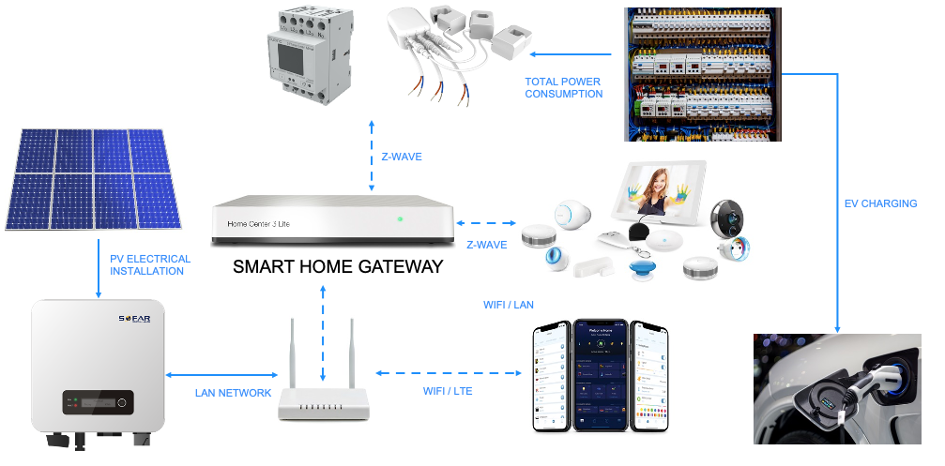
The FIBARO Energy Panel is available for all Home Center 3, Home Center 3 Lite, and Yubii Home Pro. There are 3 different connection variants:
Version 1
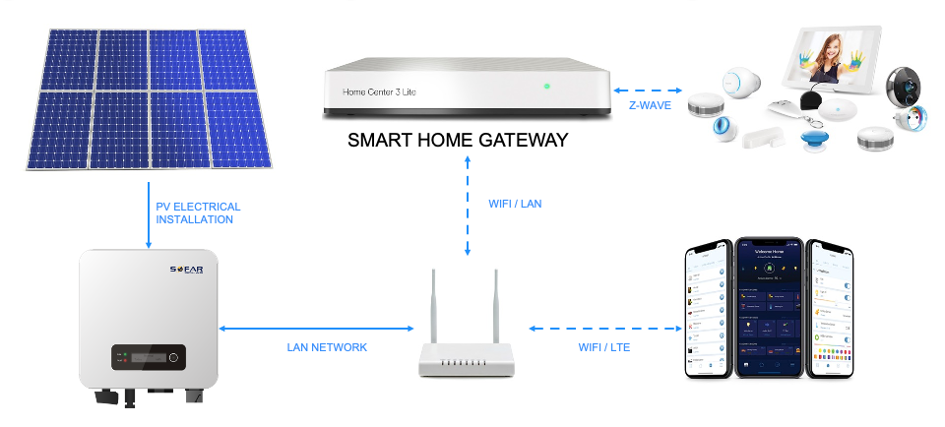
Version 2
Version 3
How to configure the FIBARO Energy panel?
Configuration of the FIBARO Energy Panel can be done via the FIBARO web interface, and only the system administrator has permission to do so. You cannot configure the Energy panel from the Yubii Home app. In the FIBARO web interface, select "Panel settings" located in the top right corner of the screen:
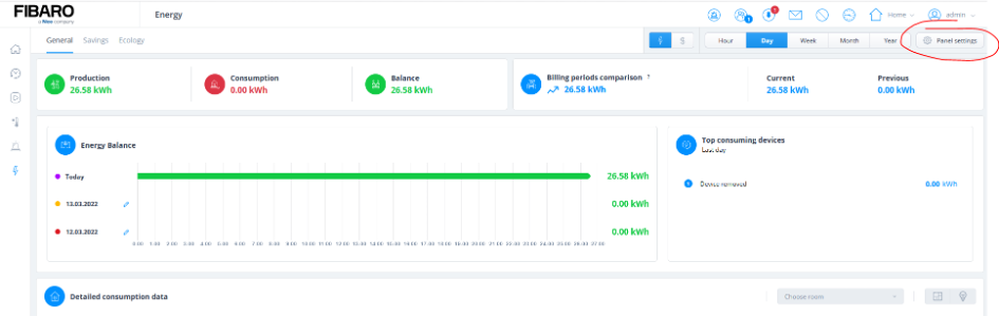
Billing periods tab
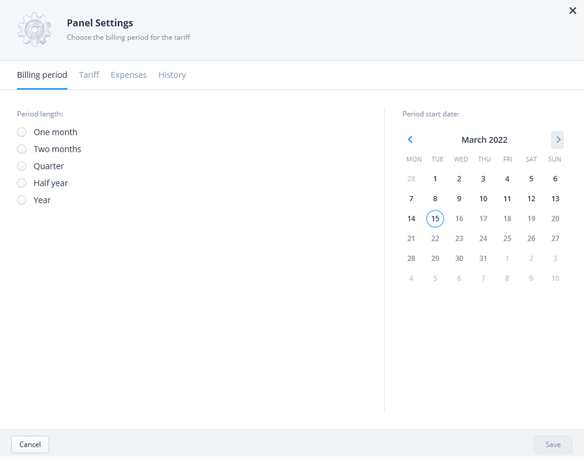
In this section of the panel, you can define the interval and start date of the billing period in the system. You can combine intervals with billing dates or select any other interval.
Tariff settings tab
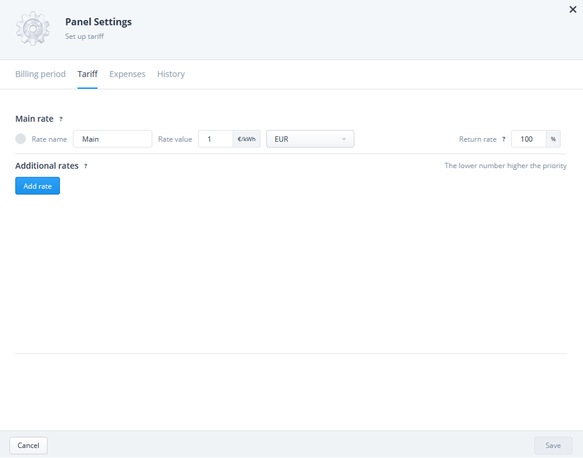 Tariff is a tab where you can determine your energy costs per kW/h. It consists of:
- Main zone - The base rate, which defaults to 24 hours a day, 7 days a week, as well as the billing currency.
- Additional zones - Adding another zone allows you to change the price at specific times or days of the week (for example, a weekend or evening zone). If there are multiple additional zones, the price at a given time is determined by priority – the higher the tariff sequence number, the higher the priority.
- Volume factor - defines the percentage of energy produced and supplied to the grid that can be retrieved (for free). The volume factor affects the costs calculated by the panel that the user incurs during energy consumption and production. The user has permission to edit it, but the default value is 100%. The change applies only to the open billing period.
Expenses (costs) tab
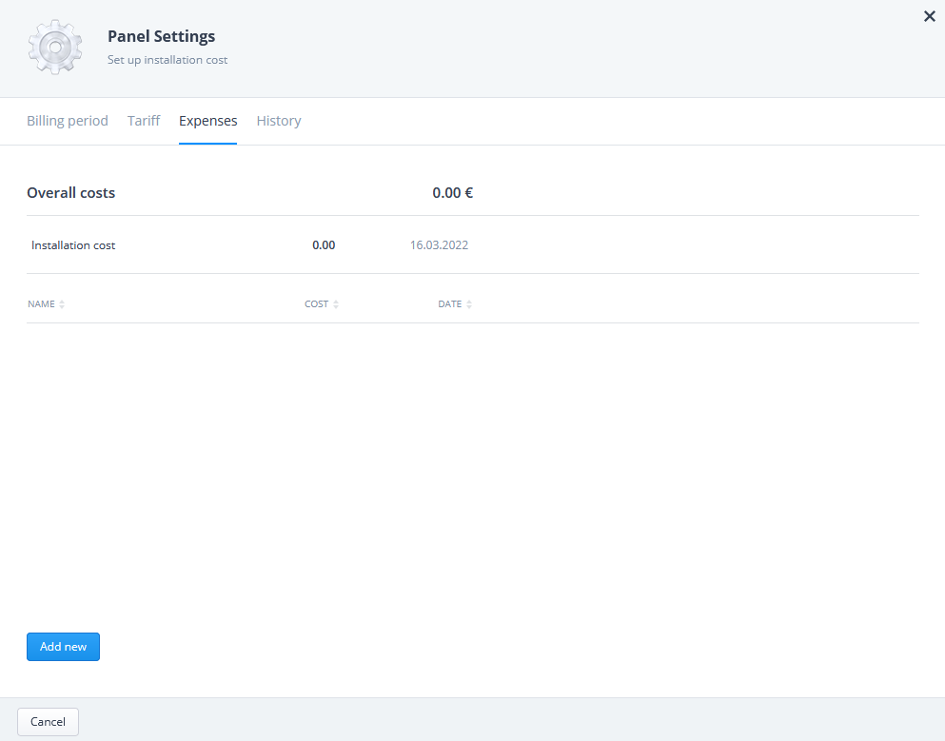 This tab is used to track the installation and maintenance costs of the photovoltaic system. It is designed to help track the return on investments intended to cover the costs by a specific installation date. You can also add other fees to track. The tab summarizes all costs so you have total control over your energy consumption expenses.
Clear history (duplicates) tab
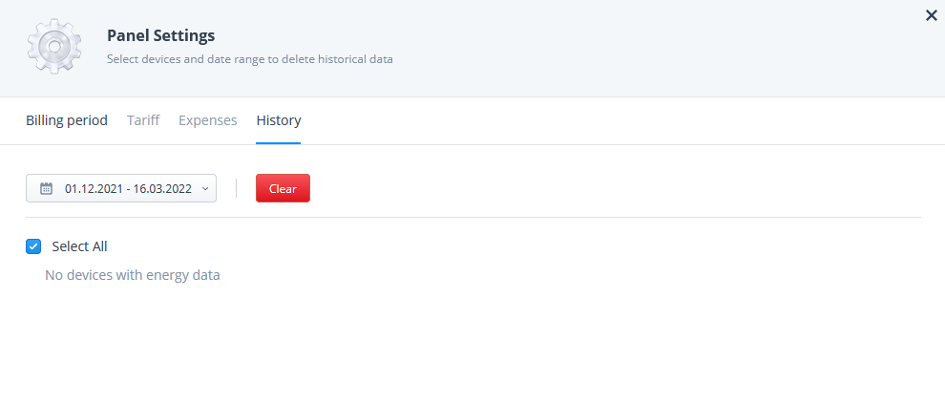 This tab allows you to clear historical data for individual devices or the entire system. This feature can be truly useful in the case of duplicate data. To clear data, you must select specific devices and define the period during which you want to delete that device's data.
Power management panel (user interface)
General settings tab
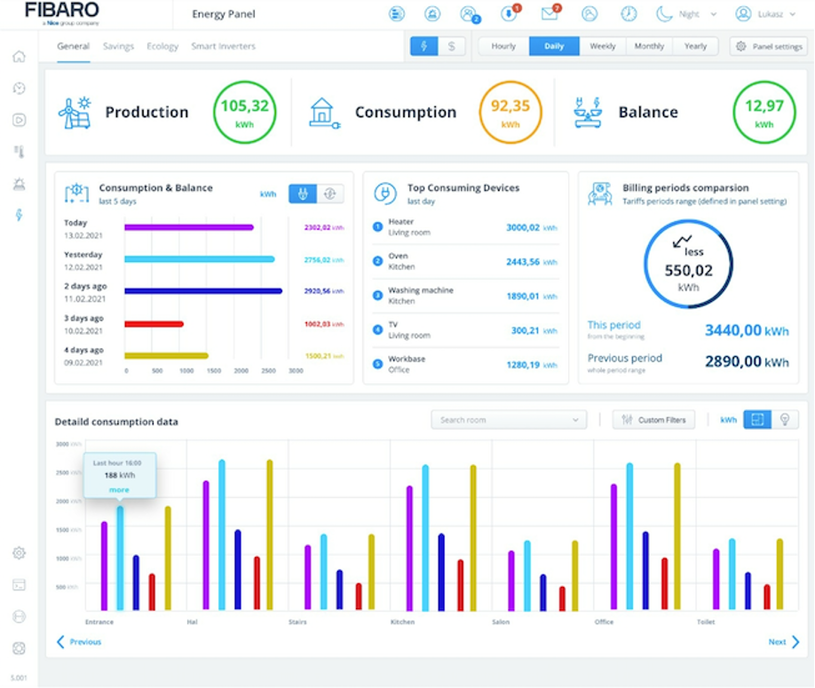
The FIBARO Energy panel provides a wide range of useful data and information presented in a simple, elegant, and very clear way. You have easy access to energy production and consumption, as well as the balance between them. At the same time, you can check which of your devices consumes the most energy, access historical data, or even dive deep into comparing billing periods. All of this is presented in colorful charts expressed in kW/h or €.
 Savings tab
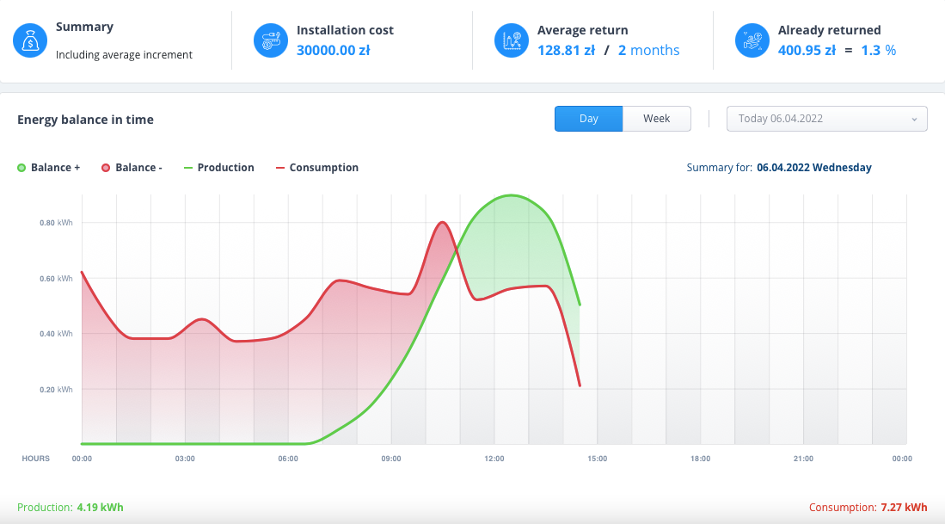 Energy production and consumption chart over time.
The Savings tab represents an advanced view on the FIBARO Energy panel that enables a detailed analysis of energy production and consumption over time. This tab consists of the following elements:
- Household energy consumption summary panel, which displays:
- the current value in the currency indicating the costs incurred by the user during the current billing period;
- average costs for completed billing periods;
- annual energy consumption in the currency.
- Energy balance chart over time, including:
- a line chart displaying data for the selected day/week;
- a list of devices that consumed energy during the selected time period – from highest to lowest consumption (% of total consumption and kW/h);
- individual hours for a daily period or selected blocks for a weekly period.
The user may find that in many cases, they run devices that consume a lot of energy outside the hours when they produce more than they consume. By adjusting their habits according to the available data, the user can use their energy-generating equipment more efficiently. A great user option is to compare the period selected for a given chart with another date (for example, the user can compare a selected week or day in the time balance chart with any other date or date range from the past).
Ecology tab
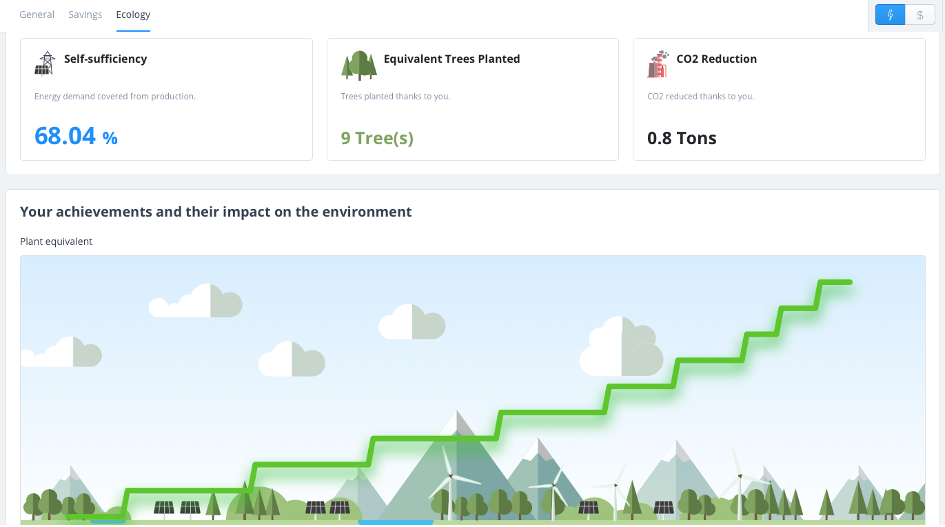 The Ecology tab is an element of the energy panel linked to the visualization of the positive environmental impact the user makes with their energy-producing device. The tab consists of 3 elements:
- Calculated self-sufficiency, indicating the percentage by which the user's installation meets their energy needs.
- Equivalent of planted trees calculated based on the amount of generated electricity.
- Reduction of CO2 (carbon dioxide) from the atmosphere calculated based on the amount of generated electricity.
The 'plant equivalent' table contains:
- a chart from the start of energy production to today;
- a chart showing the rate of virtual 'tree planting' by the user over time.
CO2 reduction chart over time:
- a chart showing energy production from the start date to today;
- a chart showing CO2 reduction over time.
Final assessment: What are the uses and benefits of using the FIBARO Energy Panel?
- Notifications regarding the status of energy production.
- Email reports on energy consumption for a given period.
- Device operation monitoring.
- Data available in the configuration interface and end-user app.
- Enables selective control (activation or deactivation of selected zones, system elements depending on the operating mode of the installation).
- Smart heating and air conditioning: thanks to the FIBARO system, you can control electric underfloor heating, radiator thermostats, and air conditioning.
- Readiness for electric vehicles: the FIBARO system and photovoltaic installation can help you control the charging process of electric vehicles.
 Do not hesitate to contact us regarding the selection of custom products, information on installation possibilities, and any other questions. We look forward to cooperating with you!