
🔄 Shelly LoRa: How to Synchronize Two Relays Simultaneously?
What is Shelly LoRa?
Shelly LoRa is a device specifically designed for industrial or remote home automation tasks. Instead of traditional Wi-Fi or Zigbee, it uses the LoRa (Long Range) communication protocol, which can transmit and receive data over distances of several kilometers with minimal energy consumption.
What is it used for?
1. Remote Relay Control
Ideal for farms, industrial facilities, or areas without Wi-Fi coverage. For example:
- Controlling irrigation systems in agricultural fields
- Operating gates, valves, or motors over long distances
2. Secure Communication
LoRa is a narrow-band but encrypted communication protocol. Since the relay does not require an internet connection, it is perfect for sensitive or offline networks.
3. Energy Efficiency
LoRa is highly energy-efficient, making it perfectly suited for battery or solar-powered installations.
How to Install Shelly LoRa
1. Relay Firmware Update – Step by Step
It is important that the Gen3 or Gen4 relays you are using with Shelly LoRa have the correct firmware version installed to recognize the add-on.
After connecting two Shelly LoRa Add-on devices to your relays, update the firmware of each relay through its web interface to version 1.6.0-beta2.
Each relay will reboot after the update. Then repeat the process for the second relay.
(How to Connect to the Web Interface:)
- On your computer, search for a new Wi-Fi network, usually named
shelly-xxxxxx. - Connect to it (note: there will be no internet access).
- Then type in your browser:
http://192.168.33.1(default IP) or the IP address assigned by your router, for example:http://192.168.1.45
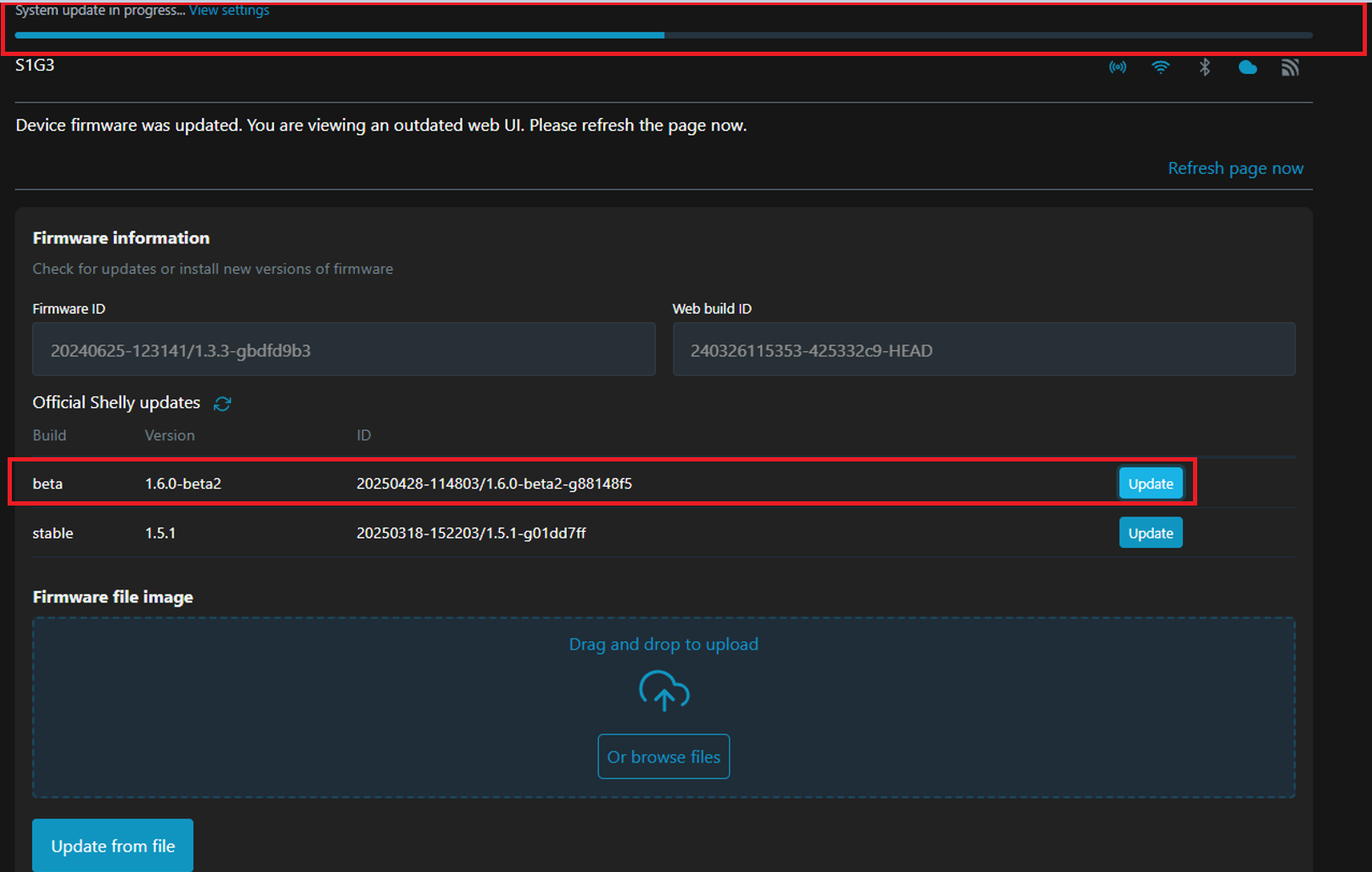
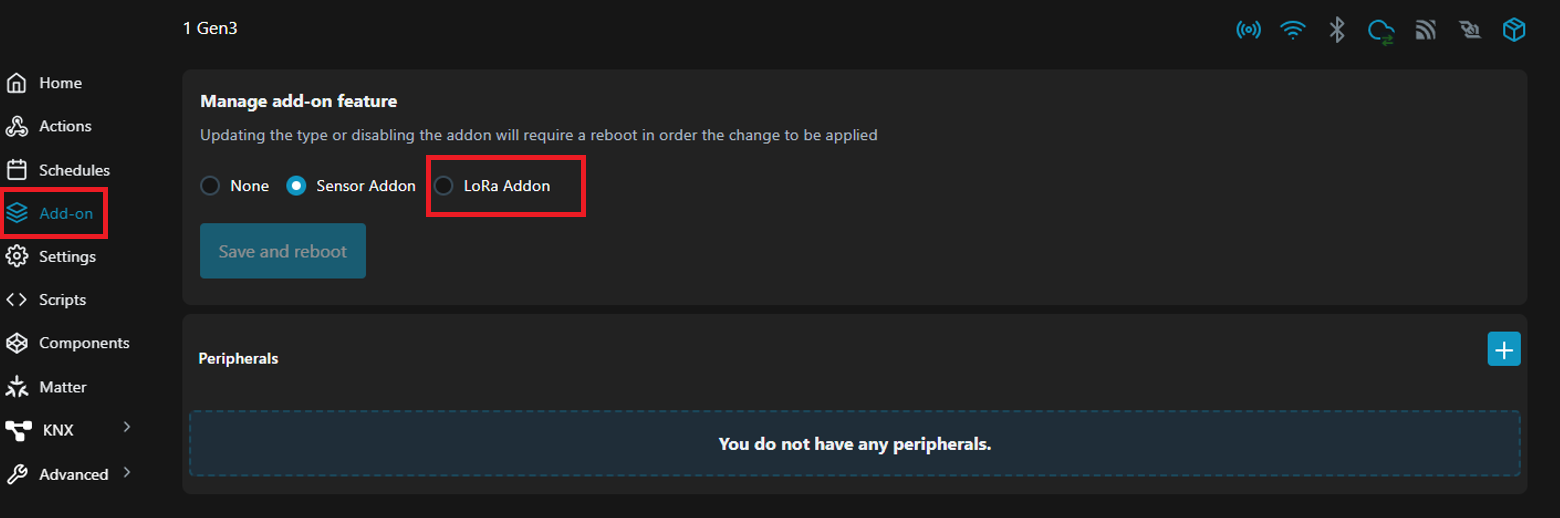
After the update, the LoRa Add-on option will appear in the "Add-on" tab (left menu).
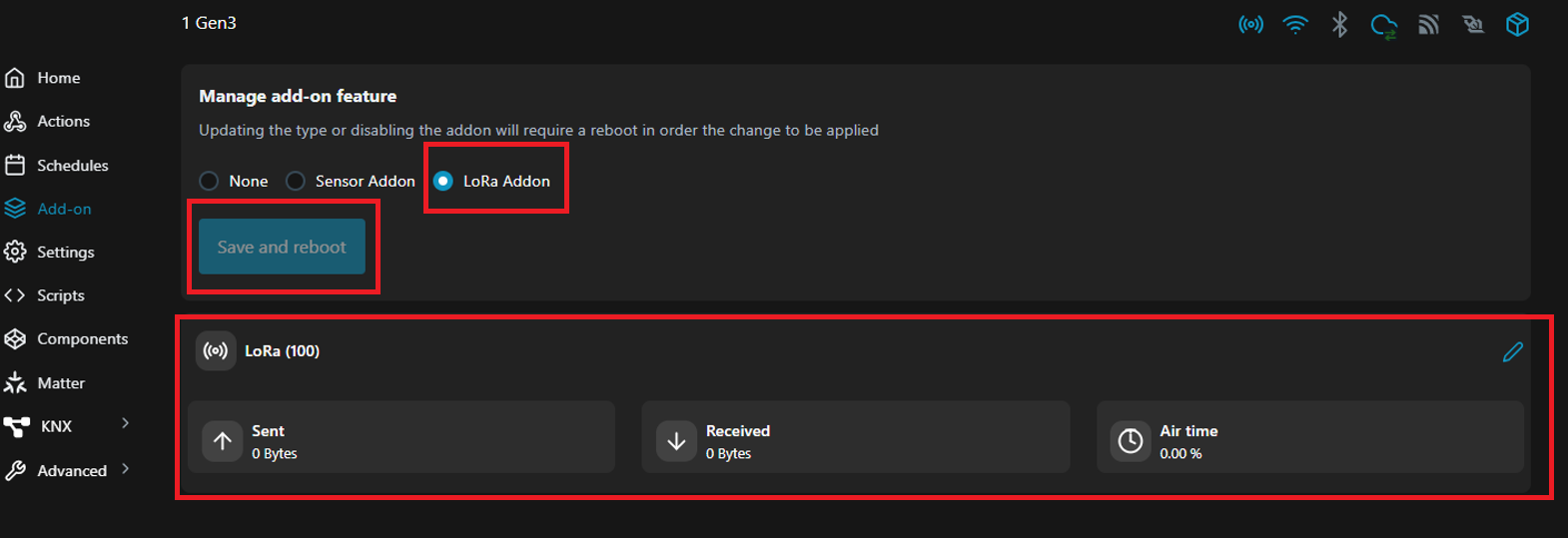
Click on "Save and Reboot" on the LoRa Add-on page. After this step, the relay switches to LoRa mode, and at the bottom, you will see the sent and received data packets (in bytes).
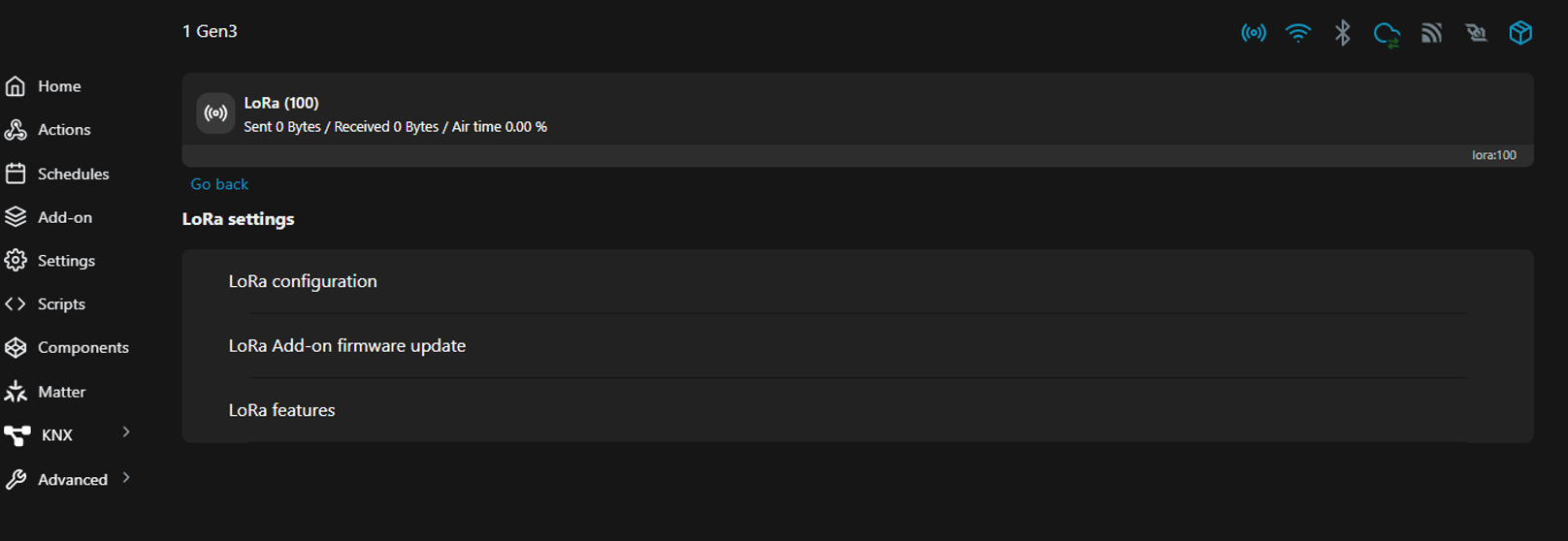
Clicking the pencil icon on the right will display settings that are not relevant to this article.
2. Synchronizing Two Relays via LoRa (Code Example)
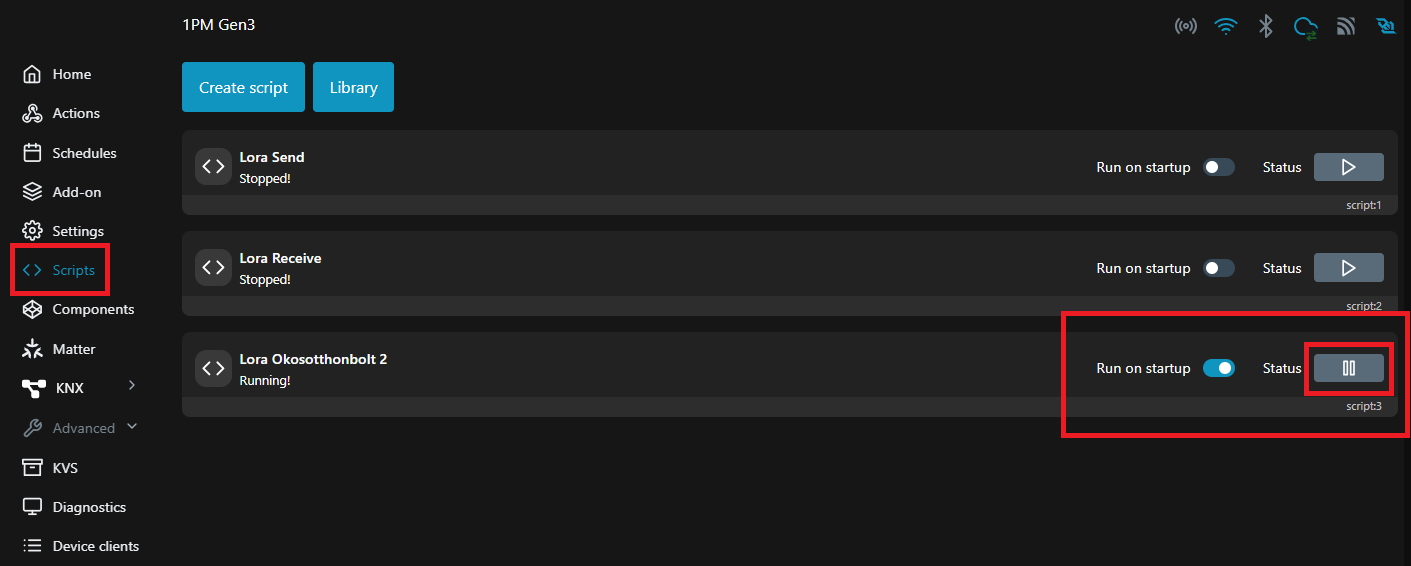
If you want two LoRa relays to operate synchronously—meaning turning one on also turns the other on—insert the following code into the scripts section of each relay.
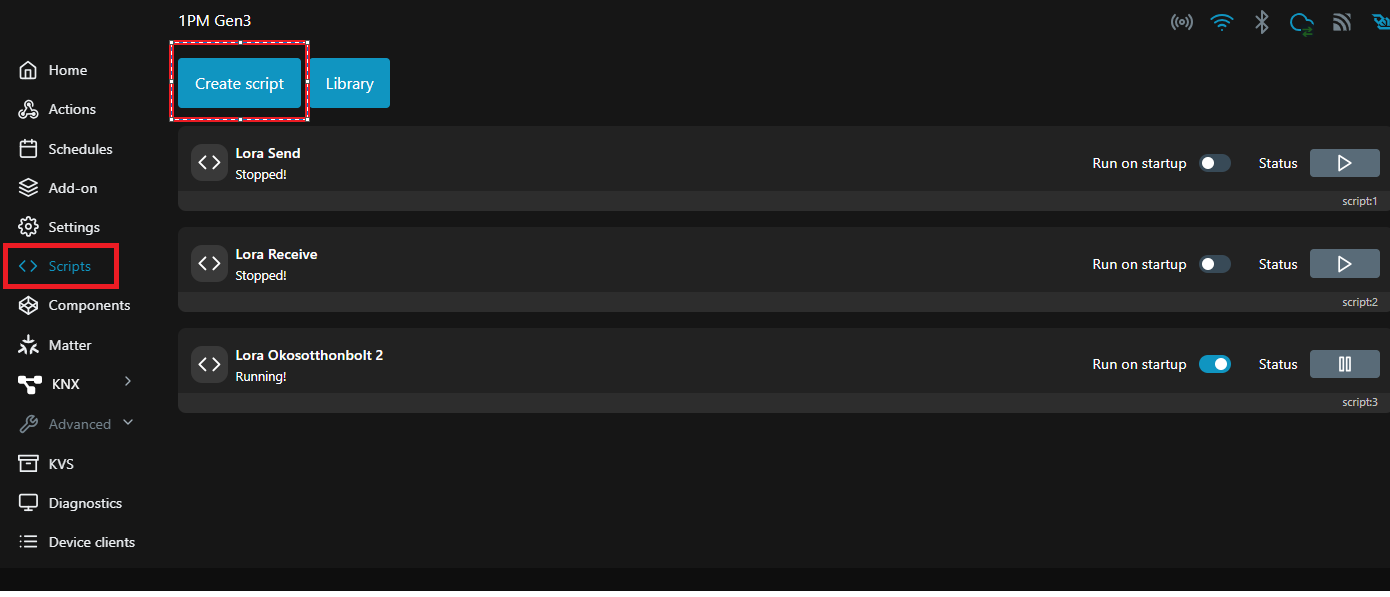
Go to <> Scripts > Create script, name the script, and paste the code.
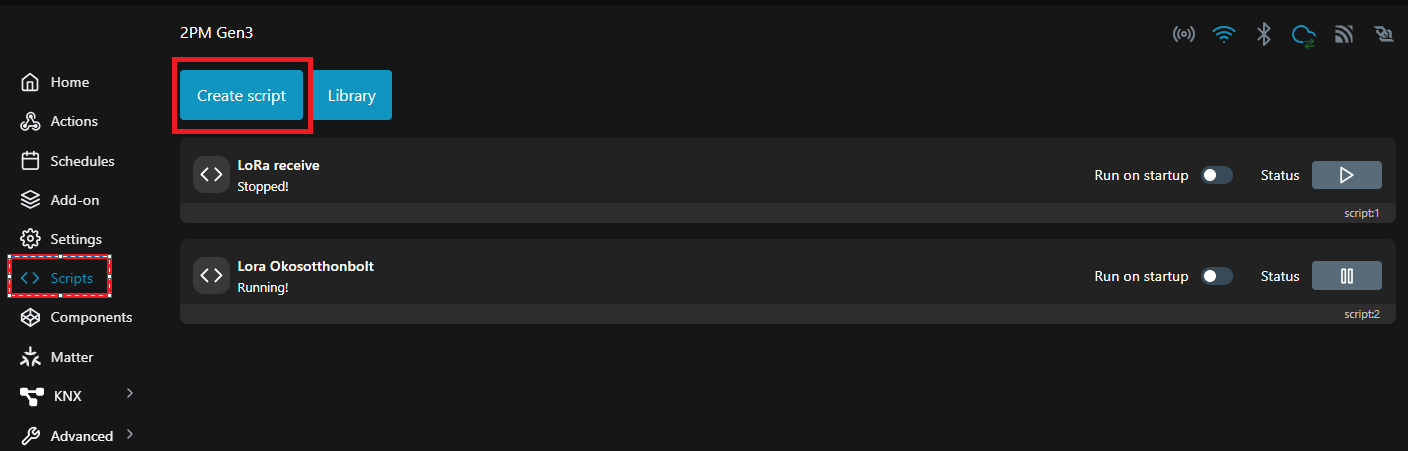
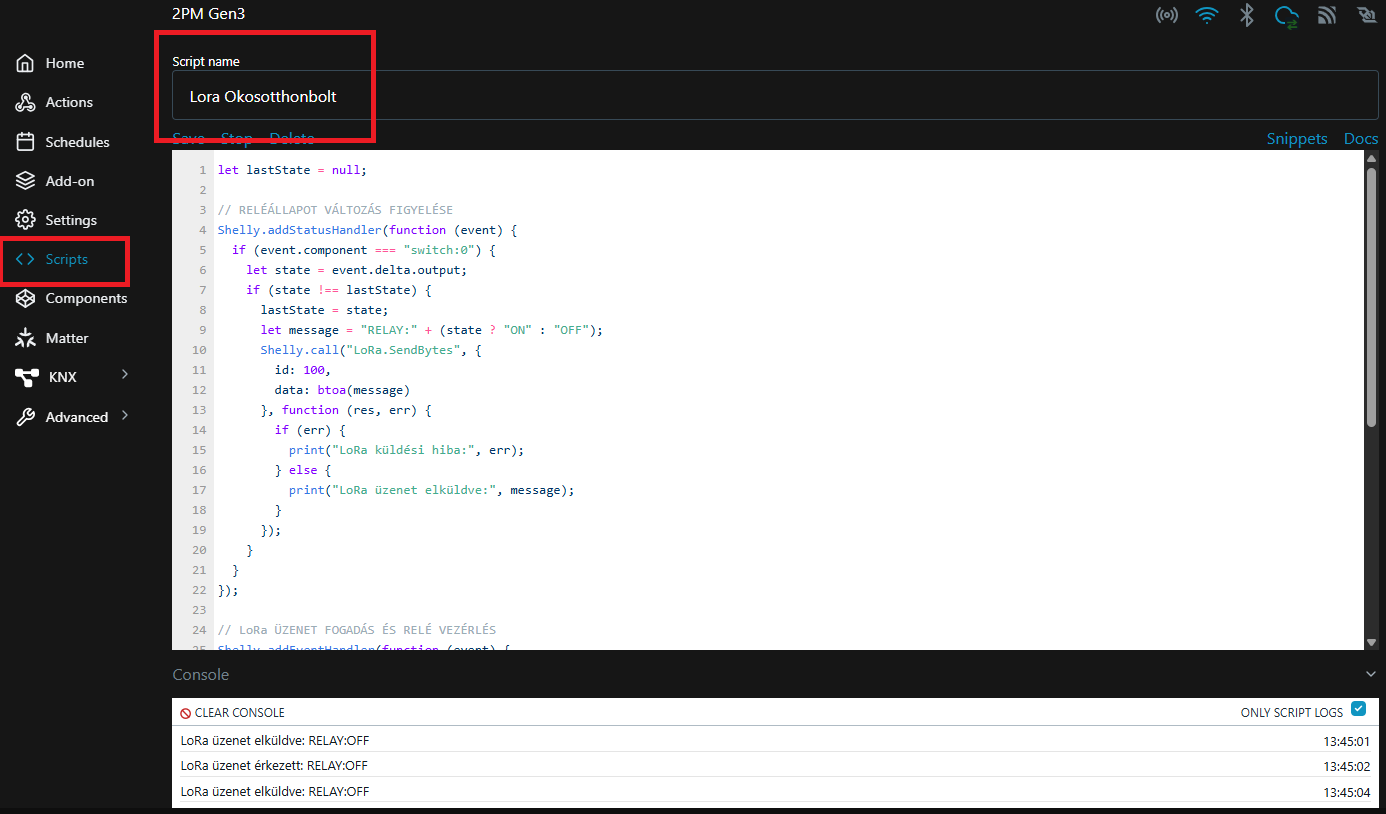
Repeat the same process for the second relay.
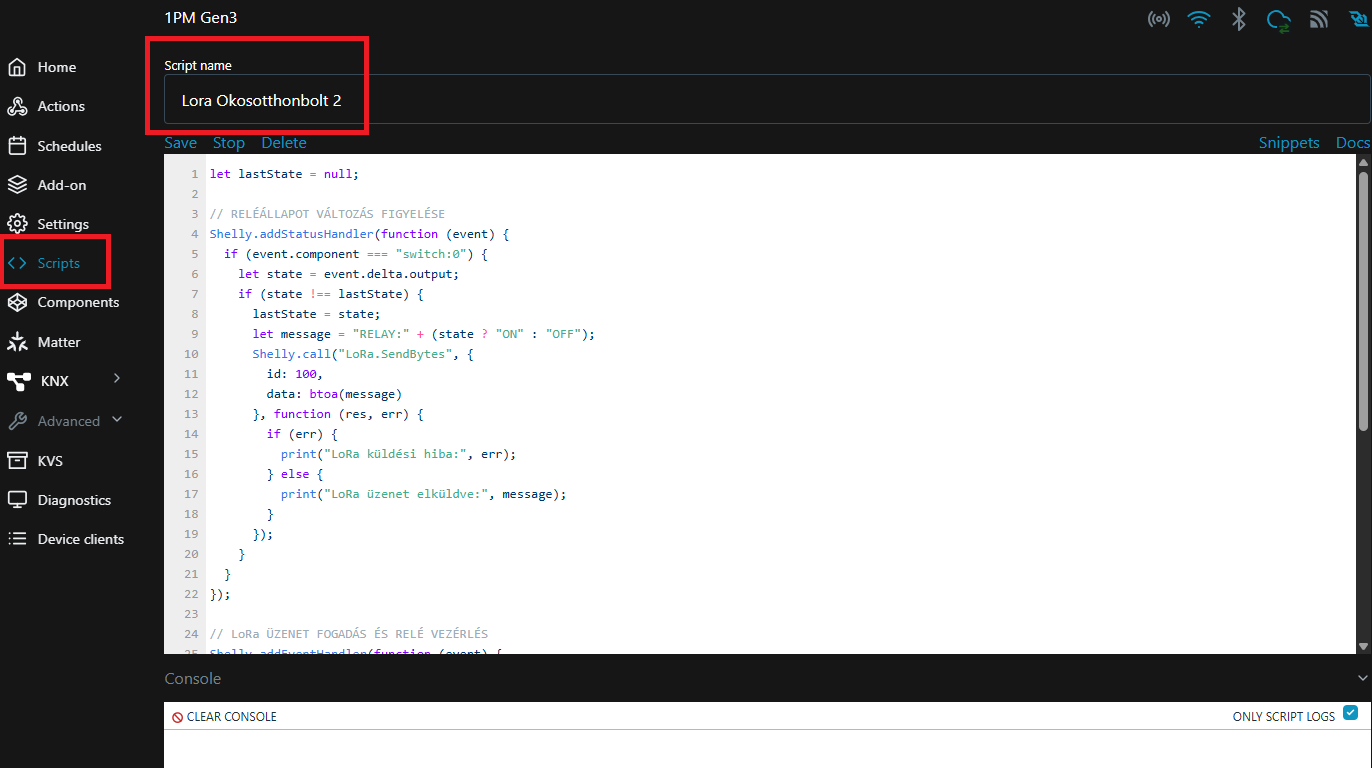
let lastState = null;

// Monitoring Relay State Change
Shelly.addStatusHandler(function (event) {
  if (event.component === "switch:0") {
    let state = event.delta.output;
    if (state !== lastState) {
      lastState = state;
      let message = "RELAY:" + (state ? "ON" : "OFF");
      Shelly.call("LoRa.SendBytes", {
        id: 100,
        data: btoa(message)
      }, function (res, err) {
        if (err) {
          print("LoRa Transmission Error:", err);
        } else {
          print("LoRa Message Sent", message);
        }
      });
    }
  }
});

// LoRa Message Reception and Relay Control
Shelly.addEventHandler(function (event) {
  if (!event || event.name !== 'lora' || event.id !== 100 || !event.info || !event.info.data) return;

  let decoded = atob(event.info.data);
  print("LoRa Message Received", decoded);

  if (decoded === "RELAY:ON") {
    Shelly.call("Switch.set", { id: 0, on: true });
  } else if (decoded === "RELAY:OFF") {
    Shelly.call("Switch.set", { id: 0, on: false });
  }
});
Once the script is added to both devices, make sure it is activated.
You can find more useful examples on the official Shelly GitHub, which you can use in the LoRa Add-on interface for even more efficient remote control of your devices!
Shelly GitHub: https://github.com/ALLTERCO/shelly-script-examples